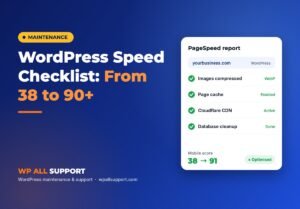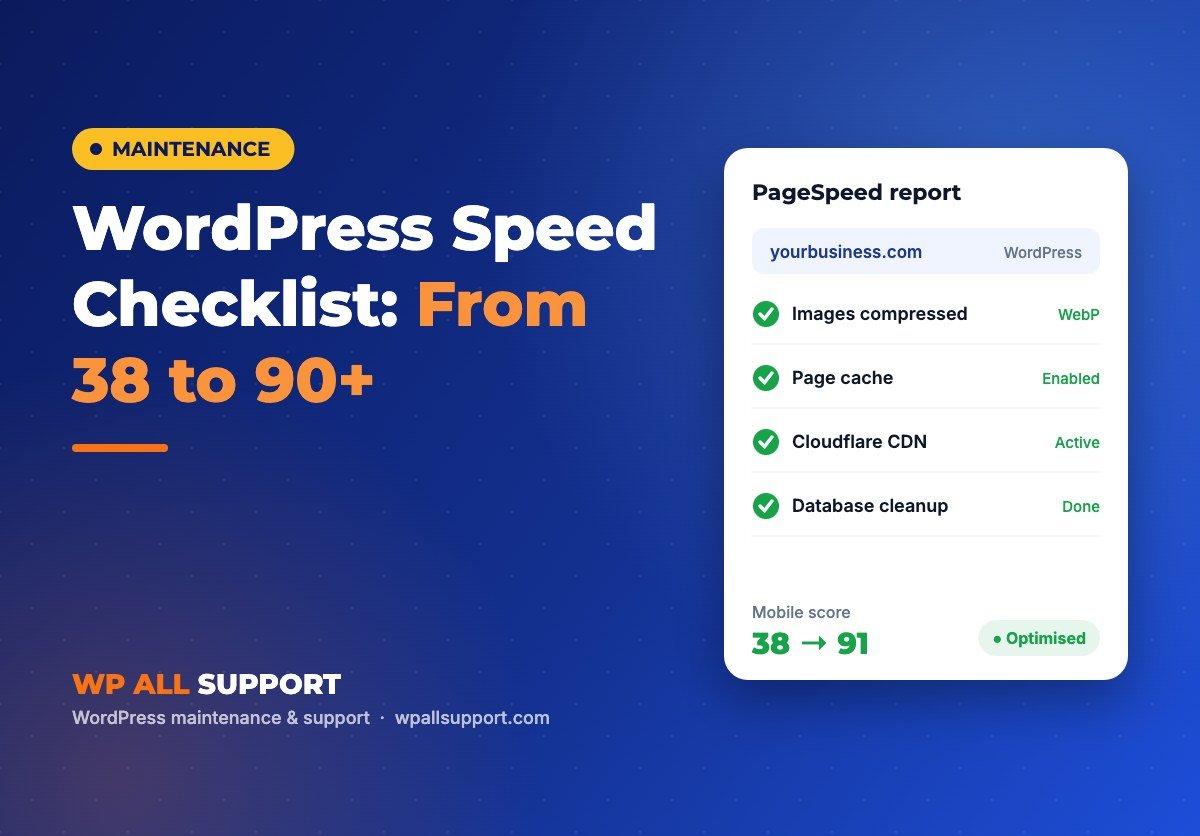
A score of 38 on Google PageSpeed Insights means visitors are leaving before your page loads. It means your Google ranking is suppressed. It means every rupee you spend on ads is showing your offer to people who bounce before they read it.
We fixed exactly this for a client last month — a pharma company in Ahmedabad. Their site scored 38 on mobile. We ran through the checklist below and got it to 91 in a single afternoon. No design changes. No new hosting. No code rewrite.
This checklist works on any WordPress site on any Indian hosting provider — Hostinger, SiteGround, Bluehost, BigRock, or Cloudways.
📋 Before you start: Run your site through Google PageSpeed Insights (pagespeed.web.dev) and note your starting score. Take a screenshot. You will want to compare it when you are done.
Why Indian WordPress sites score low
Most Indian websites have three specific problems that sites in the US and Europe do not face as often:
- Shared hosting with servers located in Singapore or the US — high latency for Indian users
- Images uploaded straight from a phone camera — 3 MB+ JPEG files on every page
- Page builders (Elementor, Divi, WPBakery) loading 500 KB of CSS and JS even on pages that do not use them
The checklist below targets these specific issues first, then works through the standard optimisations.
Section 1: Images (biggest impact, do this first)
Images account for 60–80% of page weight on a typical business website. Fixing them alone can move your score by 20–30 points.
| ✓ | Image optimisation |
|---|---|
| ☐ | Install ShortPixel or Smush — set to auto-compress all uploads on save |
| ☐ | Run bulk compression on all existing images in Media Library |
| ☐ | Convert images to WebP format (ShortPixel does this automatically) |
| ☐ | Remove images wider than 1200px from the homepage and above-the-fold sections |
| ☐ | Set the WordPress “Large” image size to 1200×900 in Settings → Media |
| ☐ | Add width and height attributes to all hero images (prevents layout shift) |
| ☐ | Use the “loading=lazy” attribute on all images below the fold (native in WP 5.5+) |
Expected gain: +15 to +30 points on mobile PageSpeed
Section 2: Caching
Caching serves pre-built HTML files to visitors instead of rebuilding the page from the database on every request. On shared hosting, this is the single biggest performance lever you have.
| ✓ | Caching setup |
|---|---|
| ☐ | Install LiteSpeed Cache (if on LiteSpeed server) or WP Rocket |
| ☐ | Enable page cache — verify at PageSpeed that “serve cached pages” is no longer flagged |
| ☐ | Enable browser caching — static assets (CSS, JS, images) should be cached for 1+ year |
| ☐ | Enable GZIP or Brotli compression in your cache plugin settings |
| ☐ | Enable CSS and JS minification (backup first — this can break things) |
| ☐ | Enable CSS and JS file combining (test carefully — often causes JS errors) |
| ☐ | Enable database query caching in the plugin settings |
| ☐ | Purge and rebuild cache after any theme or plugin update |
⚠️ Warning: Enabling CSS/JS combining breaks many plugins, especially page builders. Test on a staging environment or take a backup before enabling it. If the site breaks, disable combining and keep minification only.
Section 3: Hosting and CDN
No amount of optimisation fixes slow hosting. But before you upgrade your plan, try these steps — they often solve the latency problem without extra cost.
| ✓ | Hosting and CDN |
|---|---|
| ☐ | Enable Cloudflare free plan — point your nameservers and turn on proxy (orange cloud) |
| ☐ | In Cloudflare: set caching level to “Standard”, browser cache TTL to “1 month” |
| ☐ | Enable “Speed → Optimization → Auto Minify” for JS, CSS, HTML in Cloudflare |
| ☐ | Check if your hosting server location is Singapore or India — prefer India servers for Indian audience |
| ☐ | If on shared hosting and CPU regularly at 80%+, consider Cloudways (starting ~$11/mo) or SiteGround Growth plan |
| ☐ | Enable HTTP/2 in your hosting control panel (most modern hosts have this) |
| ☐ | If WooCommerce: enable object caching with Redis or Memcached (Cloudways includes this) |
Section 4: Database and WordPress cleanup
A bloated database slows down every query your site makes. WordPress accumulates dead weight over time — post revisions, transient data, spam comments, orphaned metadata.
| ✓ | Database cleanup |
|---|---|
| ☐ | Install WP-Optimize and run database clean (removes revisions, spam, transients) |
| ☐ | Set post revisions limit in wp-config.php: define(“WP_POST_REVISIONS”, 5) |
| ☐ | Disable WordPress debug log in production: WP_DEBUG should be false in wp-config.php |
| ☐ | Delete deactivated plugins — they still add database tables |
| ☐ | Check Options table for bloat — autoloaded data over 1MB slows every page load |
| ☐ | Schedule monthly database optimisation in WP-Optimize |
Section 5: Theme and plugins audit
A poorly coded theme or 40 active plugins can destroy performance no matter how much you optimise. This section is about trimming the fat.
| ✓ | Theme and plugin audit |
|---|---|
| ☐ | Deactivate and delete every plugin you are not actively using |
| ☐ | Use Query Monitor plugin to find which plugins generate the most database queries |
| ☐ | If using Elementor or Divi: disable loading of widgets/modules you never use |
| ☐ | Disable emoji scripts if not needed: add “remove_action” hooks or use Autoptimize |
| ☐ | Disable embeds (oEmbeds) if you do not embed YouTube/Twitter in posts |
| ☐ | Check if your theme loads Google Fonts — use a local font or system font stack instead |
| ☐ | Run your theme through Theme Check plugin for any performance anti-patterns |
Section 6: Core Web Vitals (the Google ranking factors)
PageSpeed score is useful, but Google actually ranks on Core Web Vitals: Largest Contentful Paint (LCP), Cumulative Layout Shift (CLS), and Interaction to Next Paint (INP). These need specific fixes.
LCP (Load speed)
Target: under 2.5 seconds
- Preload your hero image in functions.php
- Serve hero image as WebP
- Use fetchpriority=”high” on hero image tag
- Move above-the-fold CSS inline
CLS (Layout stability)
Target: under 0.1
- Always set width and height on images
- Reserve space for ads and embeds with min-height
- Avoid inserting content above existing content on load
- Use font-display: swap for web fonts
INP (Interactivity)
Target: under 200ms
- Defer non-critical JavaScript
- Break up long JavaScript tasks
- Reduce third-party scripts (chat widgets, analytics)
- Use a lightweight anti-spam plugin instead of reCAPTCHA
What to do after you run the checklist
Run PageSpeed Insights again. Take a screenshot. Compare.
If you are above 75 on mobile and above 85 on desktop, you are in good shape. If you are still below 60, the issue is likely your hosting or your theme — and those are harder to self-fix.
Post the checklist somewhere you will actually use it. Speed degrades over time as you install plugins, upload images, and WordPress writes more data to the database. This checklist is not a one-time task — it is a quarterly maintenance routine.
🔁 The problem with one-time fixes: Most people run through a speed checklist once, get to 85, celebrate — and then let the site degrade back to 60 over the next six months. Maintenance is the part nobody talks about.
Do not want to do this yourself?
Every site we manage runs through this checklist on day one. Speed monitoring, image compression, plugin audits, and database cleanup are part of every maintenance plan we offer — starting at $49 per month.
If you want to hand this off and focus on your business: see what is included in each plan.
See our WordPress maintenance plans
Starting at $49/month. Speed optimisation included on day one.
Published by WP All Support. We manage WordPress maintenance for 40+ business owners. info@wpallsupport.com