It is always a Monday morning. Or the night before a product launch. Or when a potential client is about to click your link from a LinkedIn message you just sent.
Your WordPress website goes down. The hosting control panel says “server is running”. Your developer does not pick up the phone. And you have no idea what to do next.
This is not bad luck. It happens for specific, predictable reasons — and most of them are completely preventable. Here are the seven most common reasons WordPress sites go down, and what you can do about each one.
| 98% of websites experience downtime every month | 60 minutes of downtime cost the average SME in lost business | 40% of WordPress hacks go undetected for weeks |
Your hosting plan ran out of resources
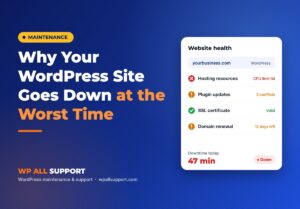
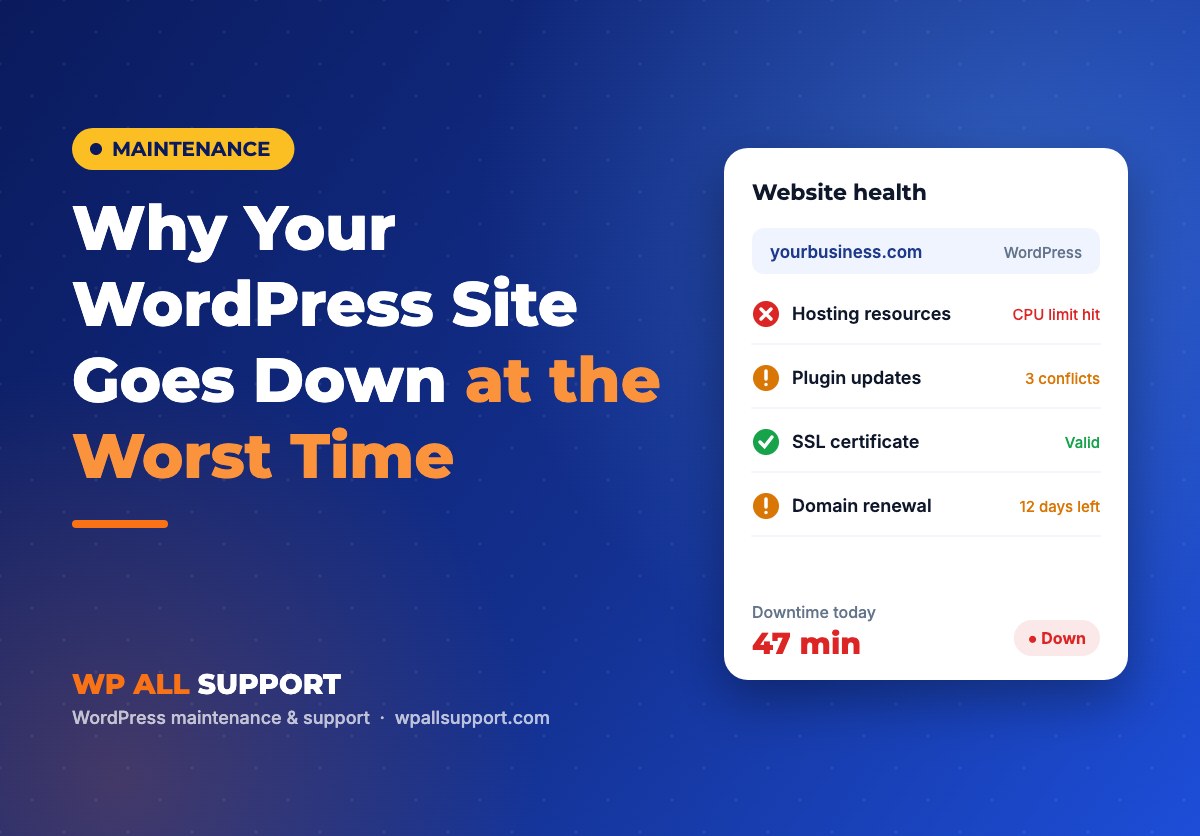
Shared hosting plans come with limits — CPU, RAM, disk I/O. When your site gets a traffic spike (a viral post, a sale email, a festival season), you hit those limits. The server throttles or drops your site entirely.
What it looks like: The site loads fine most of the time but fails under traffic. You see a 503 error or the site just times out. Happens more often on Hostinger, GoDaddy, and Bluehost shared plans.
Fix: Check your hosting dashboard for CPU/memory usage spikes. If your plan shows “CPU limit reached” alerts, you need either a VPS upgrade or caching (LiteSpeed Cache cuts server load by 70–90%). Most SME sites do not need a VPS — they just need proper caching switched on.
Quick check: Log in to your hosting panel → check Resource Usage. If CPU usage regularly hits 80%+ you are on the wrong plan or missing caching.
 Quick check: Log in to your hosting panel → check Resource Usage. If CPU usage regularly hits 80%+ you are on the wrong plan or missing caching.
A plugin update broke something
WordPress has 59,000+ plugins. Each one is built by a different developer, updated on their own schedule, and tested (or not) against other plugins on your site. When one plugin updates and conflicts with another, your site can go blank — the dreaded white screen of death.
What it looks like: A completely white or blank page. Sometimes a “critical error” message. This nearly always happens right after you clicked “Update All”.
Fix: Never click Update All on a live site without a backup. Updates should be tested on a staging environment first, then pushed to live one plugin at a time. If you are already in a white screen situation: access your site via FTP, go to /wp-content/plugins/, and rename the most recently updated plugin folder. This deactivates it and should restore your site.
 Important: If you do not have a staging environment, you are one plugin update away from an outage. This is the single biggest risk for DIY-maintained WordPress sites.
You ran out of disk space
WordPress generates files constantly — log files, cache files, image uploads, backup files. On shared hosting, disk quotas are strict. When you hit 100%, your site stops working entirely. Email may stop too.
What it looks like: The admin dashboard stops loading. Media uploads fail. You may see database errors even though nothing changed with the database.
Fix: In your hosting panel, check disk usage. Common culprits: WordPress debug logs (can grow to gigabytes if left on), backup plugin files stored on the server instead of offsite, and the wp-content/uploads folder full of uncompressed images. Turn off WP_DEBUG in wp-config.php and set your backup plugin to store backups to Google Drive or Dropbox, not the server.
Your SSL certificate expired
HTTPS is mandatory for modern websites. When your SSL certificate expires, browsers block your site and show a red warning screen to every visitor. Most people leave immediately.
What it looks like: “Your connection is not private” warning in Chrome/Firefox. The padlock icon disappears from the address bar. Google may de-rank the site while the certificate is expired.
Fix: Check your certificate expiry date at ssllabs.com/ssltest or via your hosting control panel. If it has expired, renew via your host (Hostinger and SiteGround auto-renew Let’s Encrypt certificates if you leave auto-renew enabled). Set a calendar reminder 30 days before expiry.
Your domain name expired
This is embarrassingly common and completely avoidable. Domain registrations are annual. If auto-renewal fails (expired card, bank block on international transactions), your domain is suspended and your site shows “domain not found” to every visitor.
What it looks like: The site does not open at all. Even the admin dashboard at yoursite.com/wp-admin is unreachable.
Fix: Set your domain to auto-renew with a valid card that supports international transactions (most Visa/Mastercard credit cards work; UPI does not work for most international registrars). Also save your registrar login credentials somewhere — GoDaddy or Namecheap emails go to spam and you miss the renewal warnings.
Your database crashed or hit its limit
Every WordPress page, post, setting, and user is stored in a MySQL database. When the database gets corrupted, grows too large, or the connection fails, your entire site goes down — even if the server is healthy.
What it looks like: “Error establishing a database connection” — one of the most alarming WordPress errors to wake up to.
Fix: For a crashed table, log in to phpMyAdmin via your hosting panel → select your database → click Check All → Repair Table. For a bloated database, the Transient API stores temporary data that is never cleaned — install WP-Optimize and run a database clean. Schedule this monthly.
A security attack or hack
WordPress powers 43% of the internet, which makes it the most targeted CMS for automated attacks. Brute-force login attempts, malware injections, DDoS attacks — all of them can take a site down or cause the host to suspend it.
What it looks like: Your host sends a suspension notice. The site redirects to a spam page. Visitors see a malware warning from Google. Admin dashboard is inaccessible.
Fix: If your site is suspended for malware: contact your host for the infected file list, clean using Wordfence or Malcare, or engage a professional cleanup service. Prevention is cheaper: strong admin passwords, limit login attempts, keep WordPress and plugins updated, and install a security scanning plugin.
The pattern behind all seven reasons
Look at that list. Six of the seven causes are maintenance failures — things that could have been caught and fixed before they became outages. Only DDoS attacks are unpredictable; everything else happens on a schedule.
This is what WordPress maintenance actually is. Not “someone checks your site once a month”. It is:
- Daily automated backups stored offsite
- Staged plugin and core updates tested before going live
- Uptime monitoring that alerts you within 1 minute of downtime
- Database cleanup and disk space monitoring
- SSL and domain expiry alerts
- Monthly security scan with malware removal
How to know if your site is at risk right now
The fastest way to find out: ask someone who maintains WordPress sites every day to check yours. We offer a free WordPress site audit — no pitch call, no sales pressure.
We look at your hosting, your current backup status, plugin update backlog, security posture, and page speed. You get a written report with exactly what needs attention and in what order.
Get your free WordPress audit
We check your site and send you a written report in 4 hours.
Published by WP All Support. We manage WordPress maintenance for 40+ business owners. Questions? Email info@wpallsupport.com